Building a bspwm Rice From Scratch
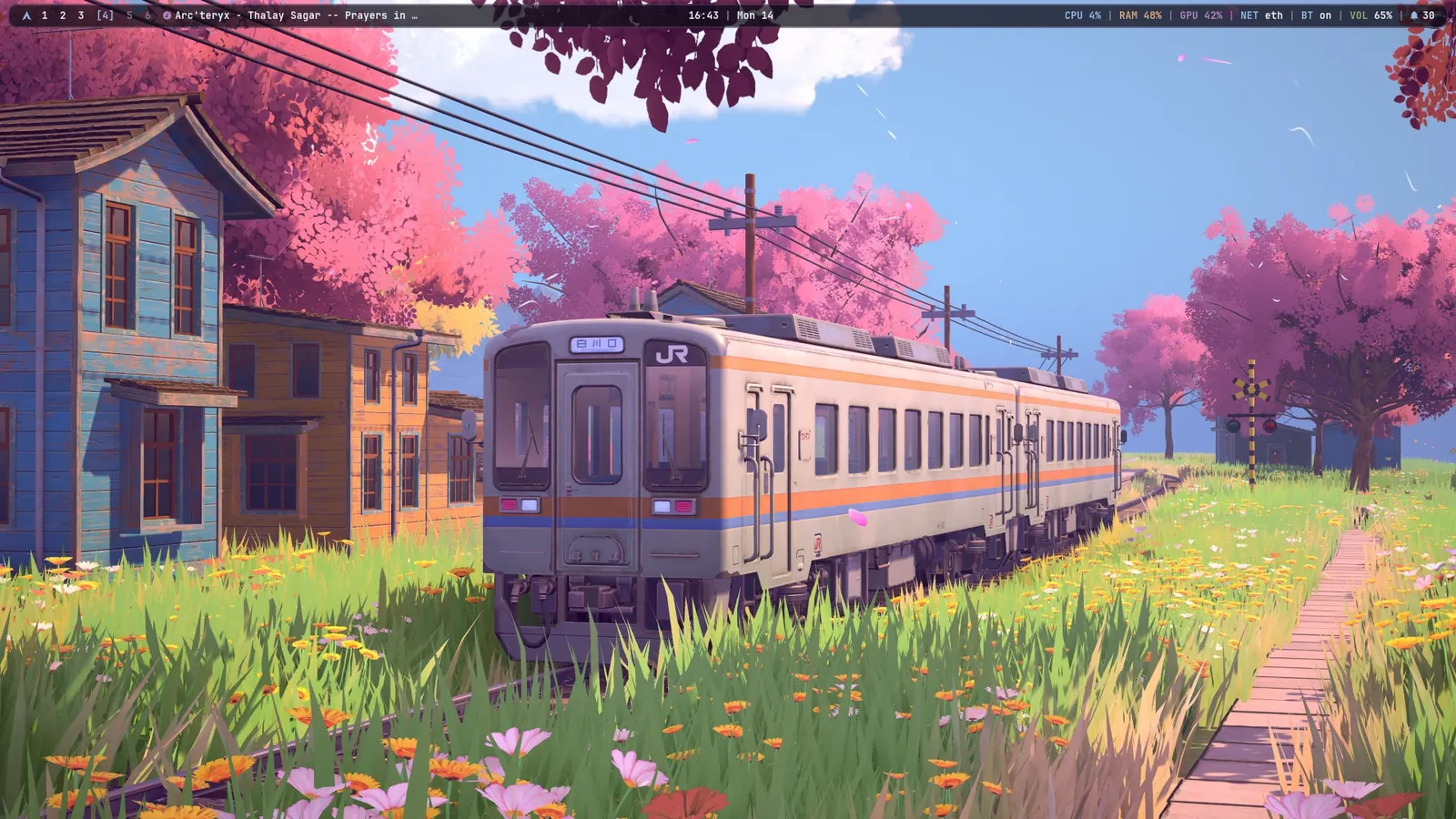
Sakura Line, my Arch desktop. One palette rendered into fourteen tools and every widget I built around it.
Contents
A “rice” is a customised Linux desktop. Most of them are a wallpaper, a colour scheme and a bar, glued together until they look right in one screenshot. I wanted the opposite: a desktop where the bar, menus, popups, notifications, lock screen, terminal and prompt all come from one palette and one set of shapes, so it feels like one system instead of a pile of tools.
This is Sakura Line, my bspwm setup on Arch. This post shows what it looks like, how each part works and how you can build your own from nothing or just install mine.
What’s in it#
| Part | Tool |
|---|---|
| Window manager | bspwm, with sxhkd for keybindings |
| Bar | polybar, floating and rounded. Every label opens its own panel |
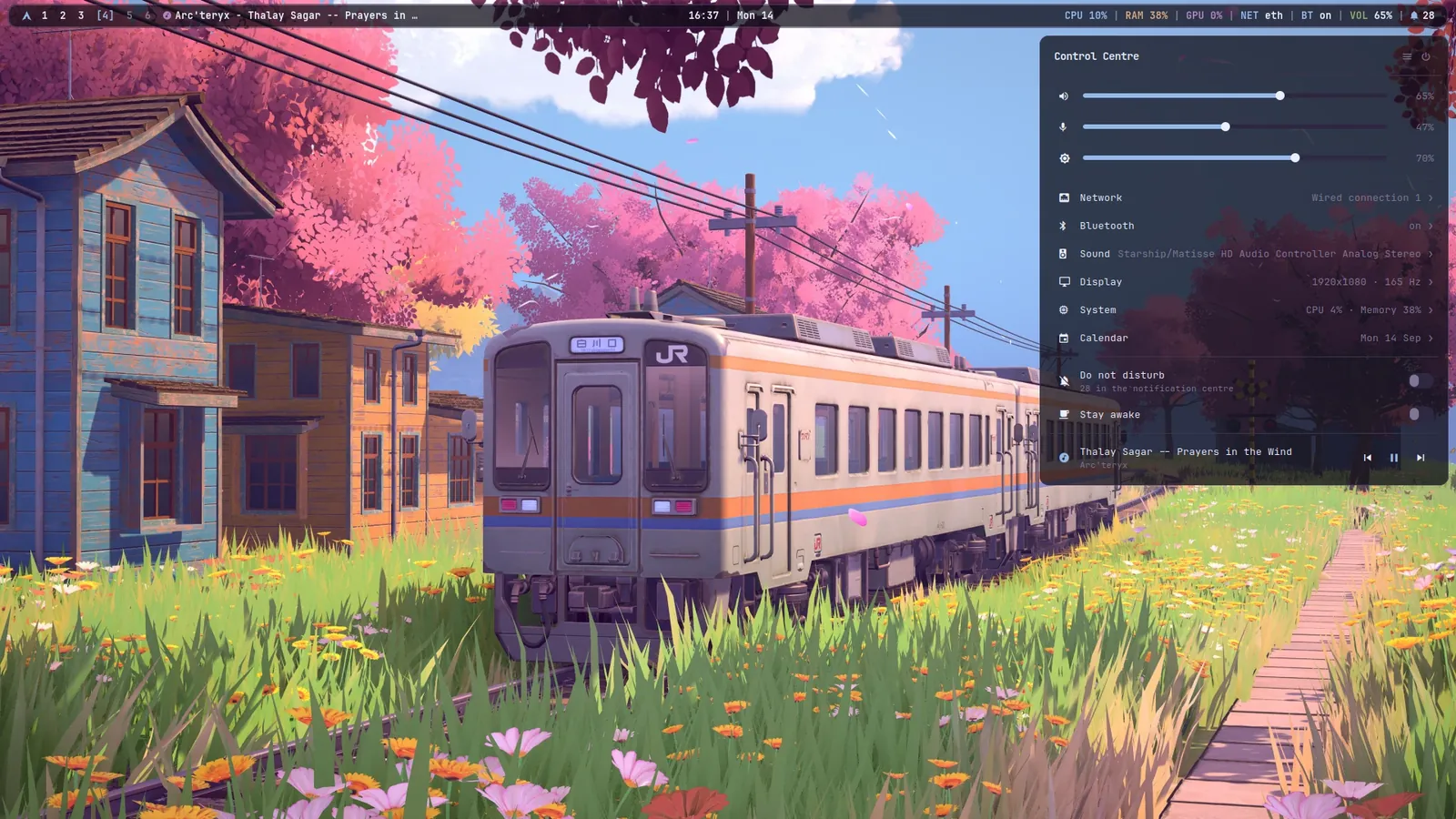
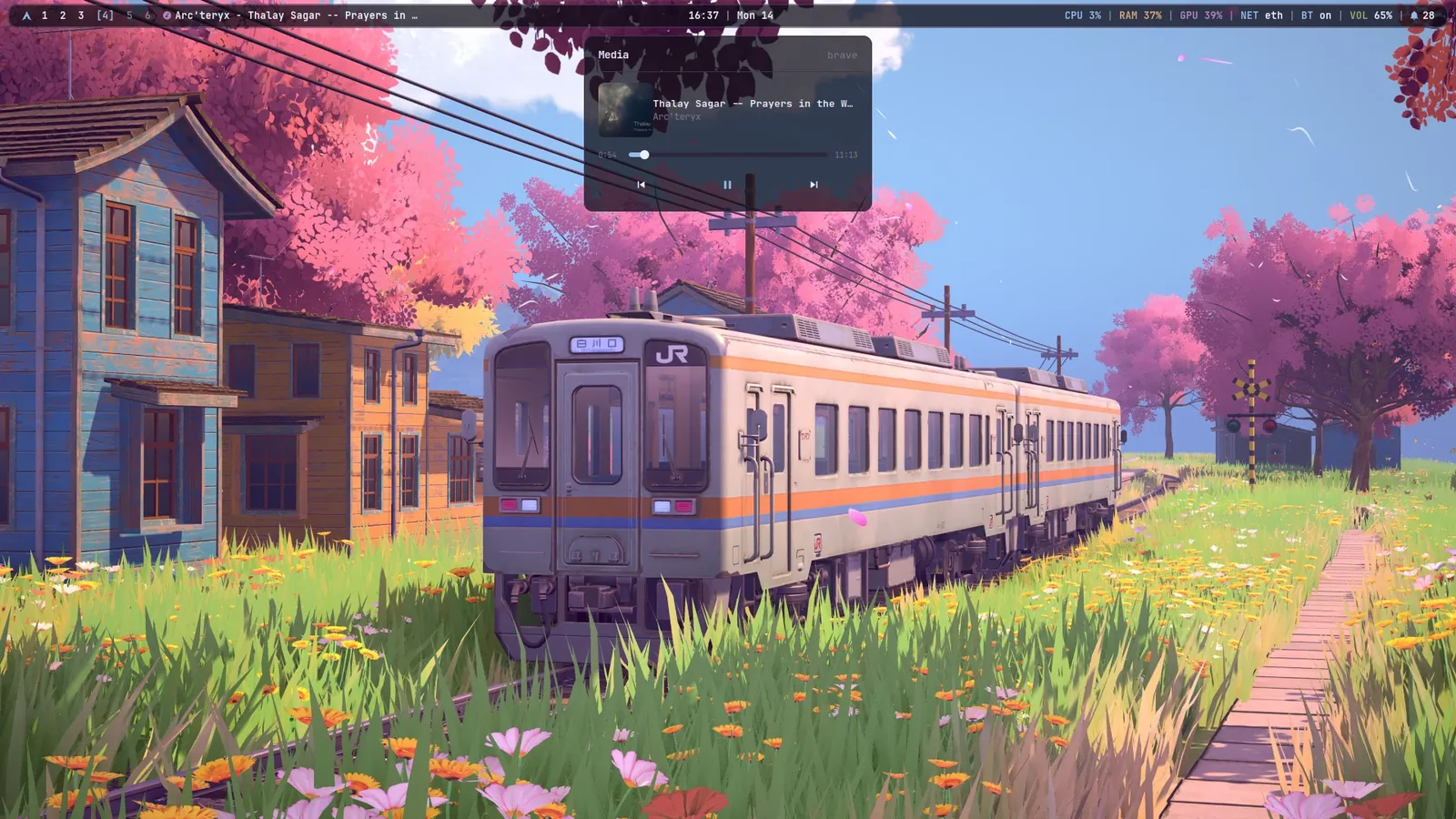
| Popups | eww: control centre, audio, network, bluetooth, display, power, media, calendar, notifications |
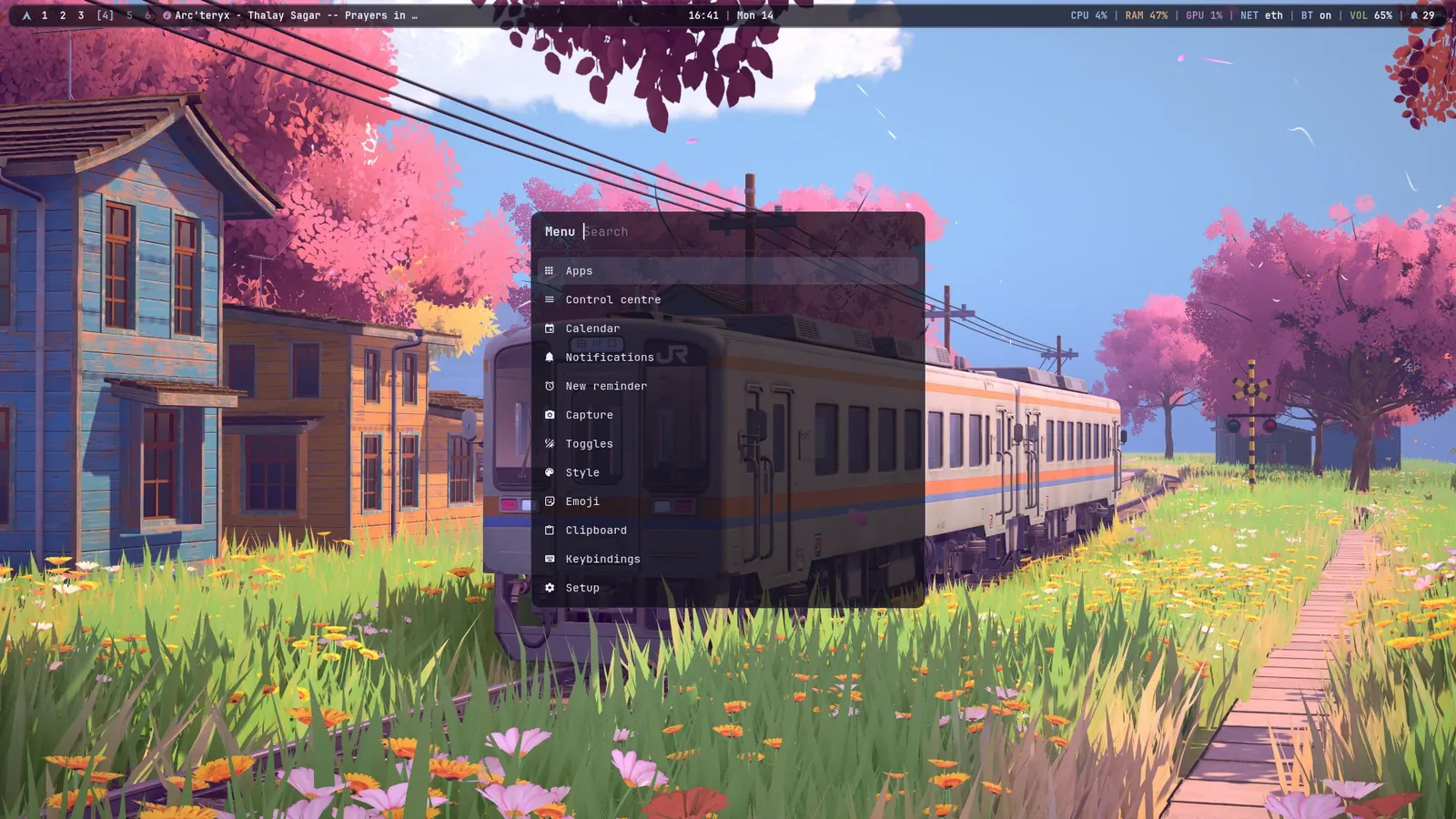
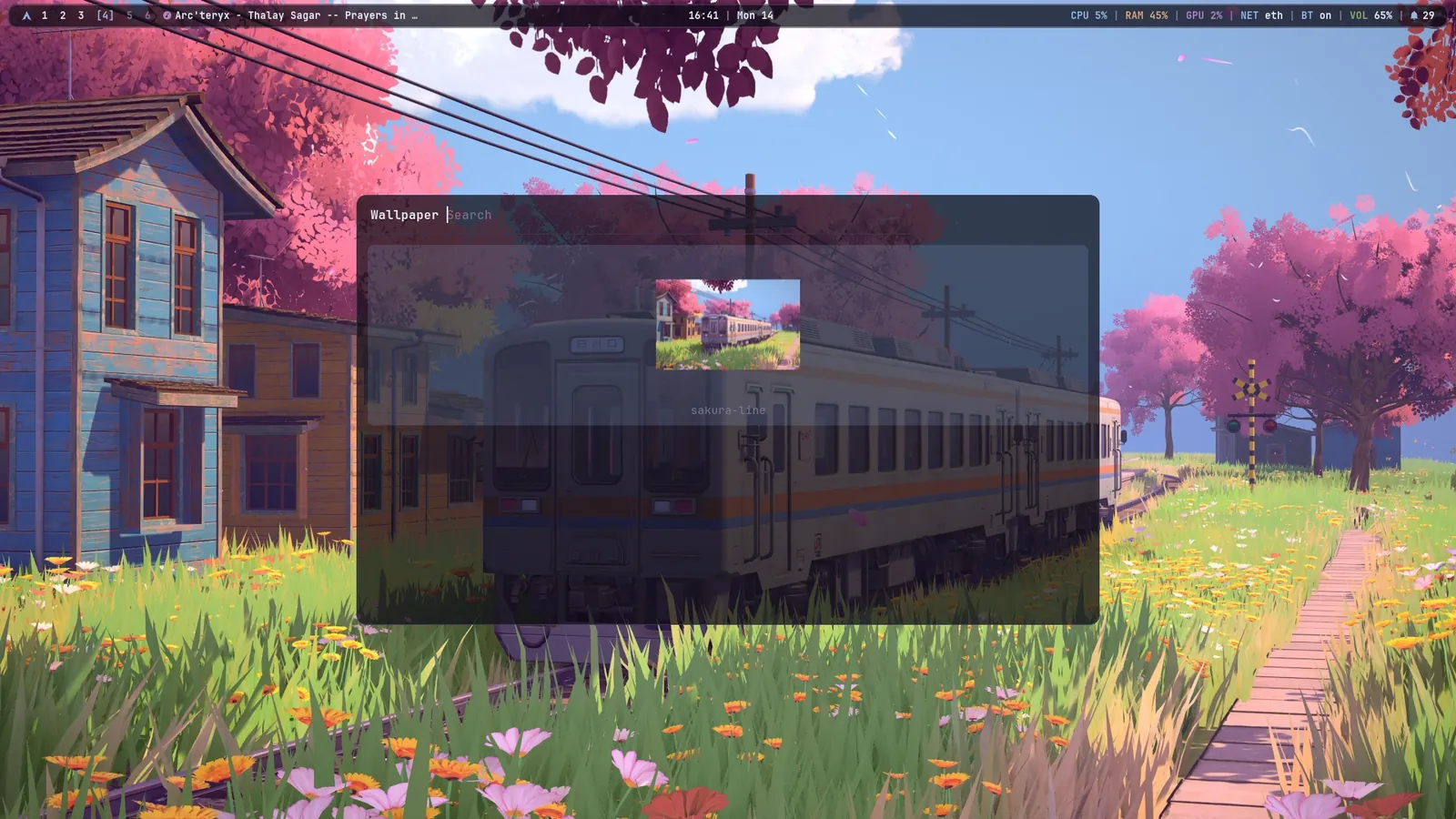
| Menus | rofi: launcher, rice menu, power, toggles, capture, theme and wallpaper pickers, emoji, clipboard, keybindings |
| Notifications | dunst, with a notification centre and do-not-disturb |
| Compositor | picom, with one motion language for windows and popups |
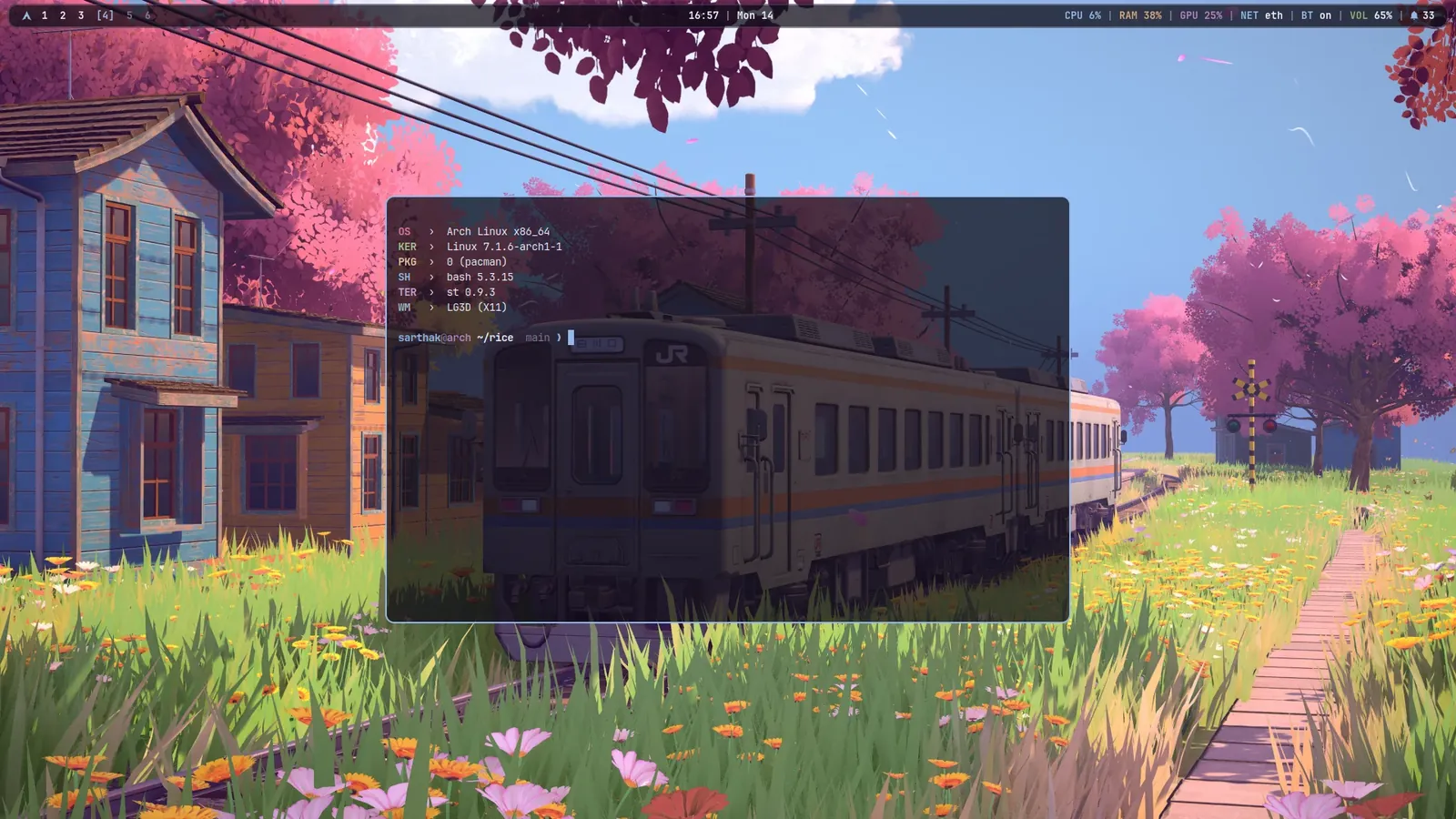
| Terminals | st (st-flexipatch with sixel images and ligatures) and kitty |
| Prompt | starship, one line |
| Lock and idle | xscreensaver after 5 minutes, xsecurelock after 10, skipped during fullscreen video |
| Calendar | khal and vdirsyncer against any CalDAV server, reminders as systemd timers |
| Capture | flameshot, gpu-screen-recorder, OCR, QR codes, colour picker, webcam overlay |
Around those tools sit 35 small scripts, all named rice-*. They feed the widgets their data and carry out their actions.
Start with a window manager and a keyboard#
If you’re building from scratch, this is the whole minimum. bspwm is a tiling window manager that does one thing: it arranges windows in a binary tree. It has no keybindings of its own. Those come from sxhkd, a separate hotkey daemon. bspwm is configured by a shell script, bspwmrc, which runs bspc commands, so the whole configuration is just a program.
Here’s the core of mine:
bspc monitor "$primary" -d 1 2 3 4 5 6

bspc config focus_follows_pointer true
bspc config borderless_monocle    true
bspc config split_ratio           0.52
bspc config automatic_scheme      longest_side
bspc config initial_polarity      second_child
bspc config pointer_modifier      mod4
bspc config pointer_action1       move
bspc config pointer_action2       resize_side
bspc config pointer_action3       resize_corner
automatic_scheme longest_side makes every new window split whichever side of the focused window is longer, so the layout stays balanced without any thought. Holding super lets you drag windows with the mouse.
Rules decide how particular apps behave. Restarting bspwm re-runs this file, so it clears the old rules first, or every restart would stack another copy of each:
bspc rule -r '*'

for app in feh imv mpv vlc Yad Zenity Xarchiver ark Blueman-manager; do
  bspc rule -a "$app" state=floating center=on
done
bspc rule -a rice-scratchpad state=floating sticky=on layer=above
Machine-specific things, like which apps start on which desktop, live in ~/.config/rice/local.sh. bspwmrc sources that file, but it isn’t part of the repo, so the shared config stays the same on every machine.
Keybindings that document themselves#
sxhkd’s format is a key chord on one line and the command on the next, indented. I added one convention on top: a ## Section line starts a group and a # comment directly above a binding is its description.
## Apps

# Terminal
super + Return
	st

# Drop-down terminal (scratchpad)
super + grave
	rice-scratchpad

## Panels

# Control centre
super + a
	rice-panel hub
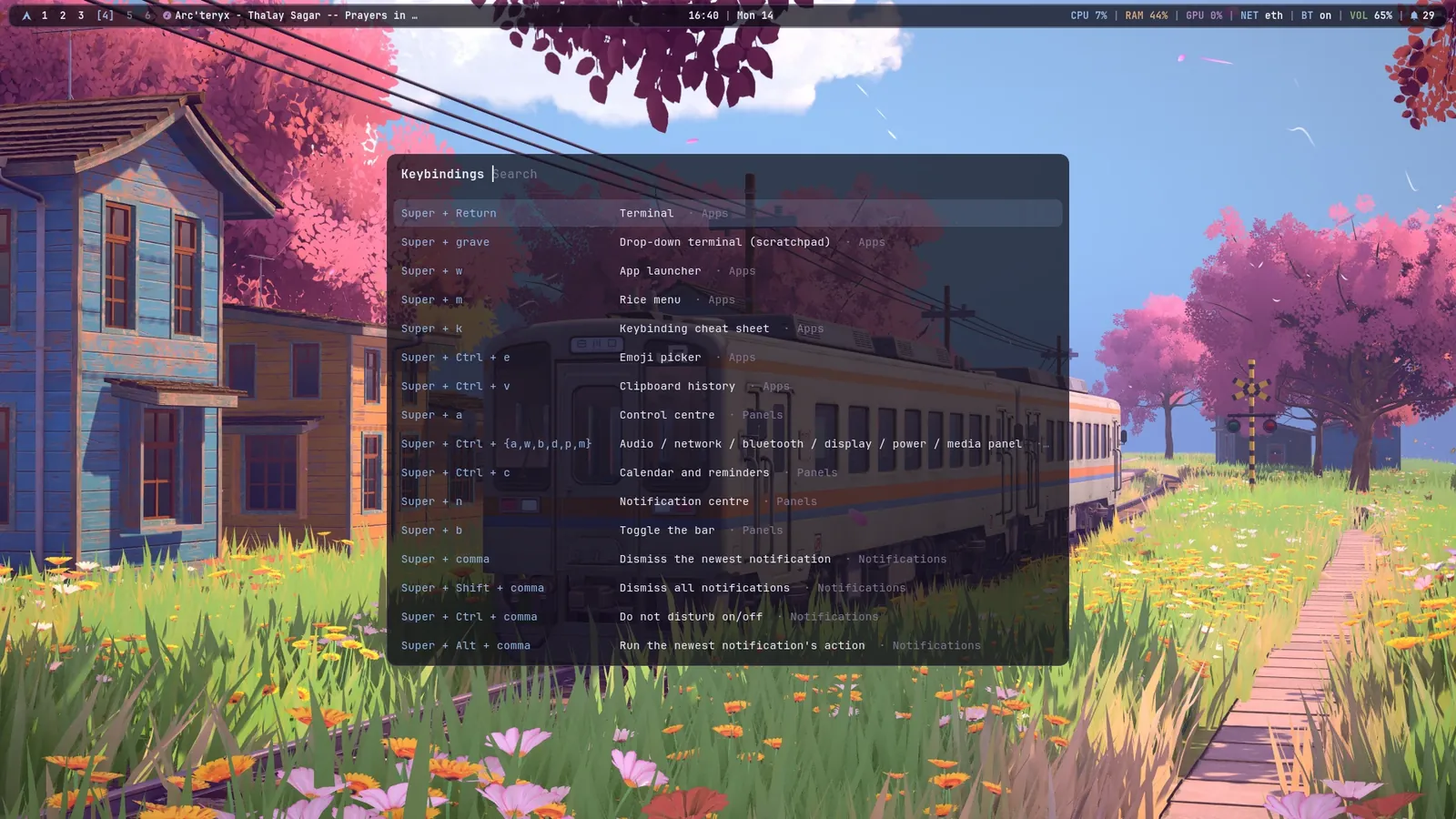
rice-keys parses that file and shows it as a searchable cheat sheet in rofi. There’s no separate list of shortcuts to keep in sync: add a binding with a comment above it and it shows up in super + k.
One palette for everything#
This is the part that makes it feel like one system. A theme is a single file, themes/<name>/colors.toml:
name = "Sakura Line"
wallpaper = "sakura-line.jpg"

# surfaces, darkest to lightest
bg        = "#0f0d17"
surface   = "#221c33"
border    = "#3d3752"

# text and roles
fg        = "#e9eefb"
dim       = "#7f7796"
accent    = "#92b9ea"
urgent    = "#e0798f"

# translucency, shape and type, shared by every popup, menu and toast
alpha         = "0.75"
font          = "JetBrainsMono Nerd Font"
radius        = "12"
gap           = "10"
(The real file also has the sixteen terminal colours, icon, cursor and GTK themes, border widths and a few more keys.)
Each tool gets a template instead of a hand-written config. The polybar one looks like this:
[colors]
bg       = {{ bg }}
bg-trans = #{{ alpha_hex }}{{ bg_strip }}
text     = {{ fg }}
accent   = {{ accent }}
urgent   = {{ urgent }}
Every key is available in three forms, because every tool wants colours differently: {{ accent }} gives #92b9ea, {{ accent_strip }} gives 92b9ea and {{ accent_rgb }} gives 146,185,234. There are fourteen templates in total, covering bspwm, polybar (colours and modules), rofi, dunst, eww, kitty, st (through Xresources), GTK, starship, fzf, imv, xsecurelock and xsettingsd.
Rendering a theme#
rice-theme set <name> does the rest, in plain bash and sed:
- It reads
colors.tomland turns every key into sed substitutions for all three placeholder forms. - It renders every template into a fresh temporary directory.
- It warns about any
{{ placeholder }}it couldn’t fill, so a typo in a template doesn’t fail silently. - It swaps the new directory into place in one move, so nothing ever reads a half-written theme.
- It tells every running program to reload.
Your own overrides in ~/.config/rice/theme.override.toml are appended last and win over every theme. That’s how the font picker works without editing any theme file.
The reload step has one detail I’m quite pleased with. kitty and st re-read their colours when they receive SIGUSR1, but an older st build without that handler would simply be killed by the signal. So before sending it, rice-theme checks each process’s signal mask in /proc and only signals the ones that actually catch it:
# signal_if_caught <SIGNAL> <process-name>: send the signal only to processes
# whose SigCgt mask says they install a handler for it.
signal_if_caught() {
  local sig="$1" name="$2" num pid mask
  num=$(kill -l "$sig")
  for pid in $(pgrep -u "$UID" -x "$name"); do
    mask=$(awk '/^SigCgt:/ { print $2 }' "/proc/$pid/status" 2>/dev/null)
    [[ -n $mask ]] && (( (16#$mask >> (num - 1)) & 1 )) && kill -"$sig" "$pid"
  done
}
The result is that switching theme recolours everything at once, with open terminals included: wallpaper, window borders, bar, popups, menus, notifications and the prompt. The rice ships five themes, each sampled from its wallpaper.
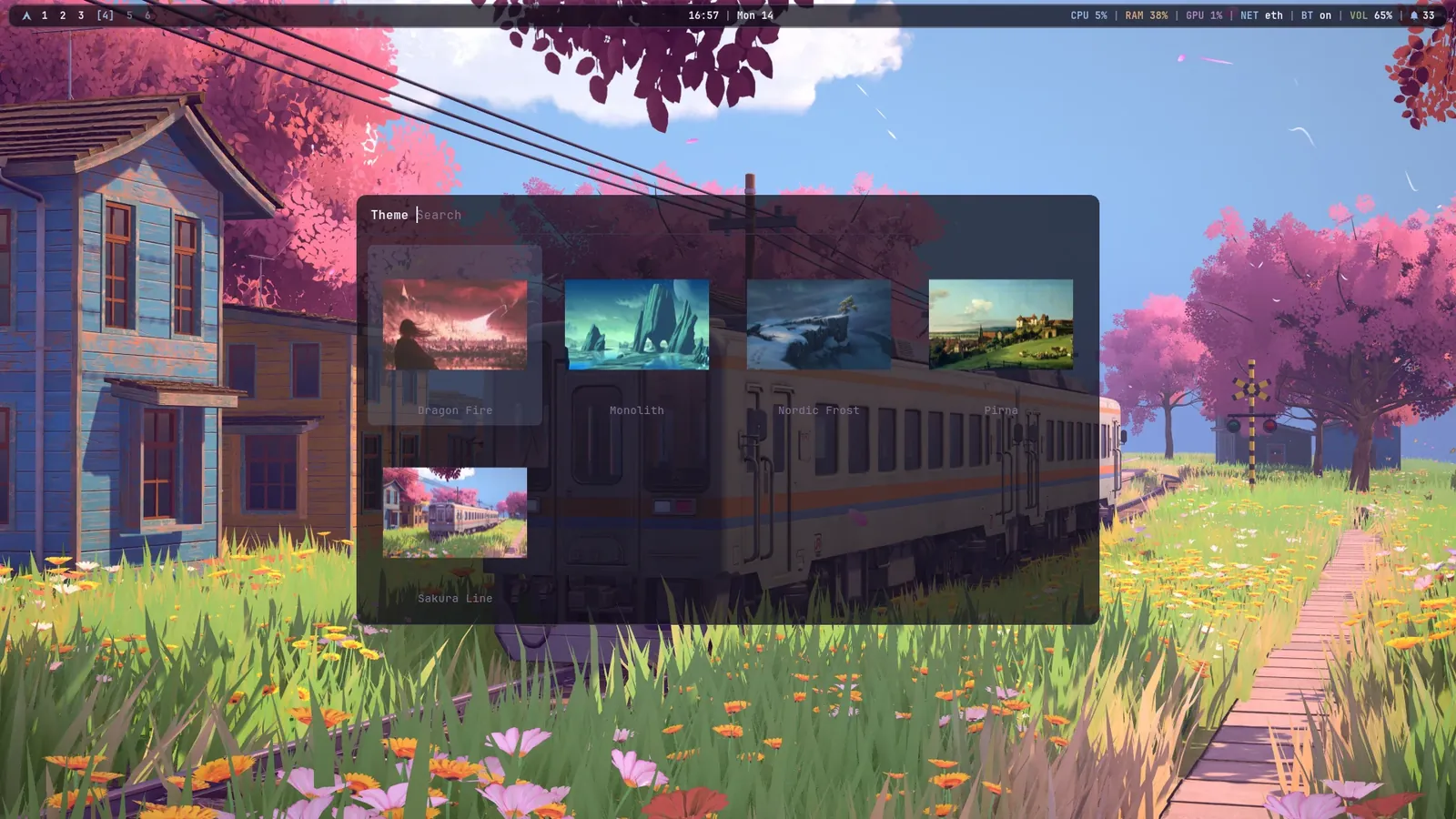
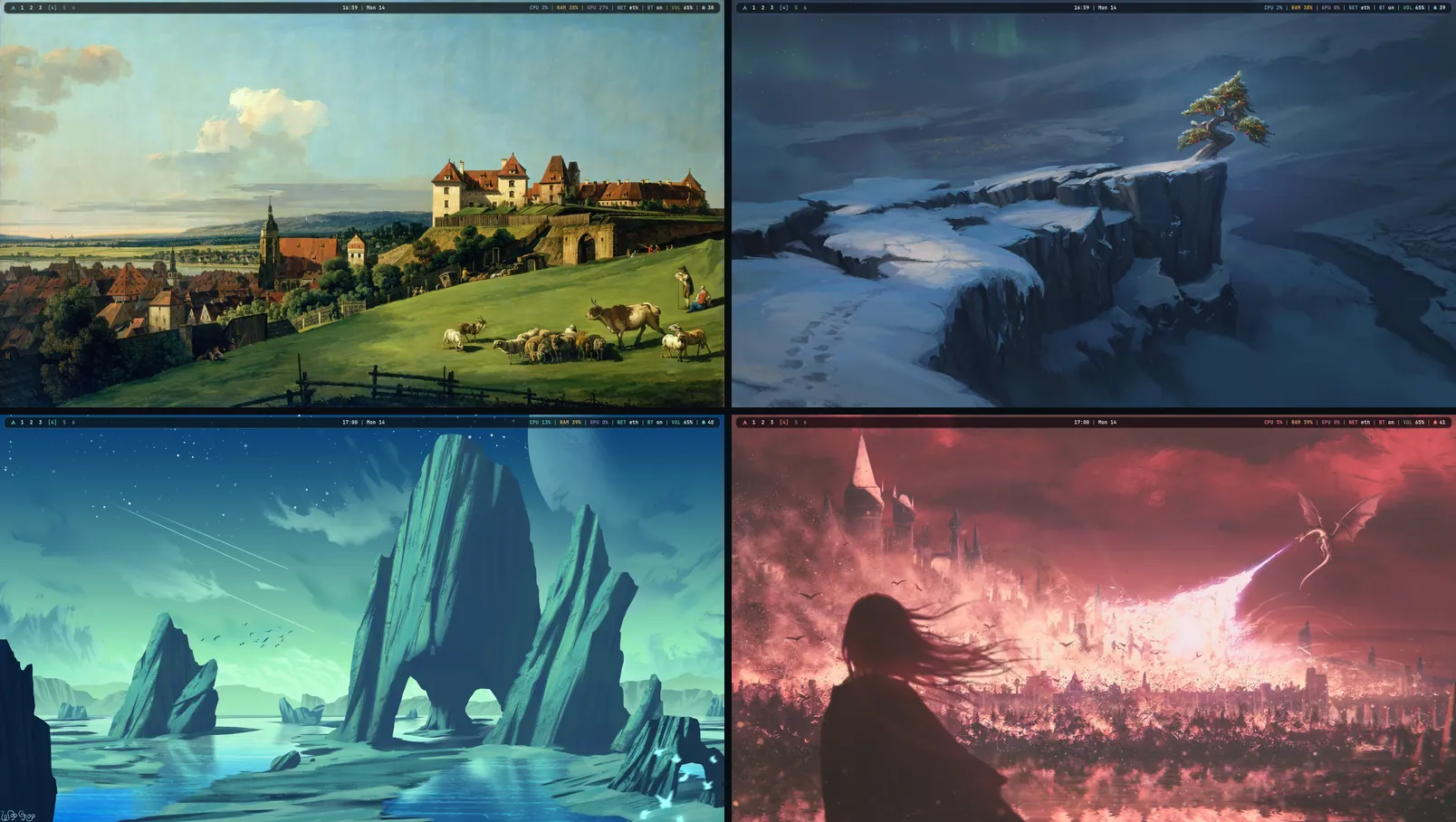
Adding your own means creating a folder with a colors.toml and a wallpaper. It shows up in the picker straight away.
The bar and its panels#
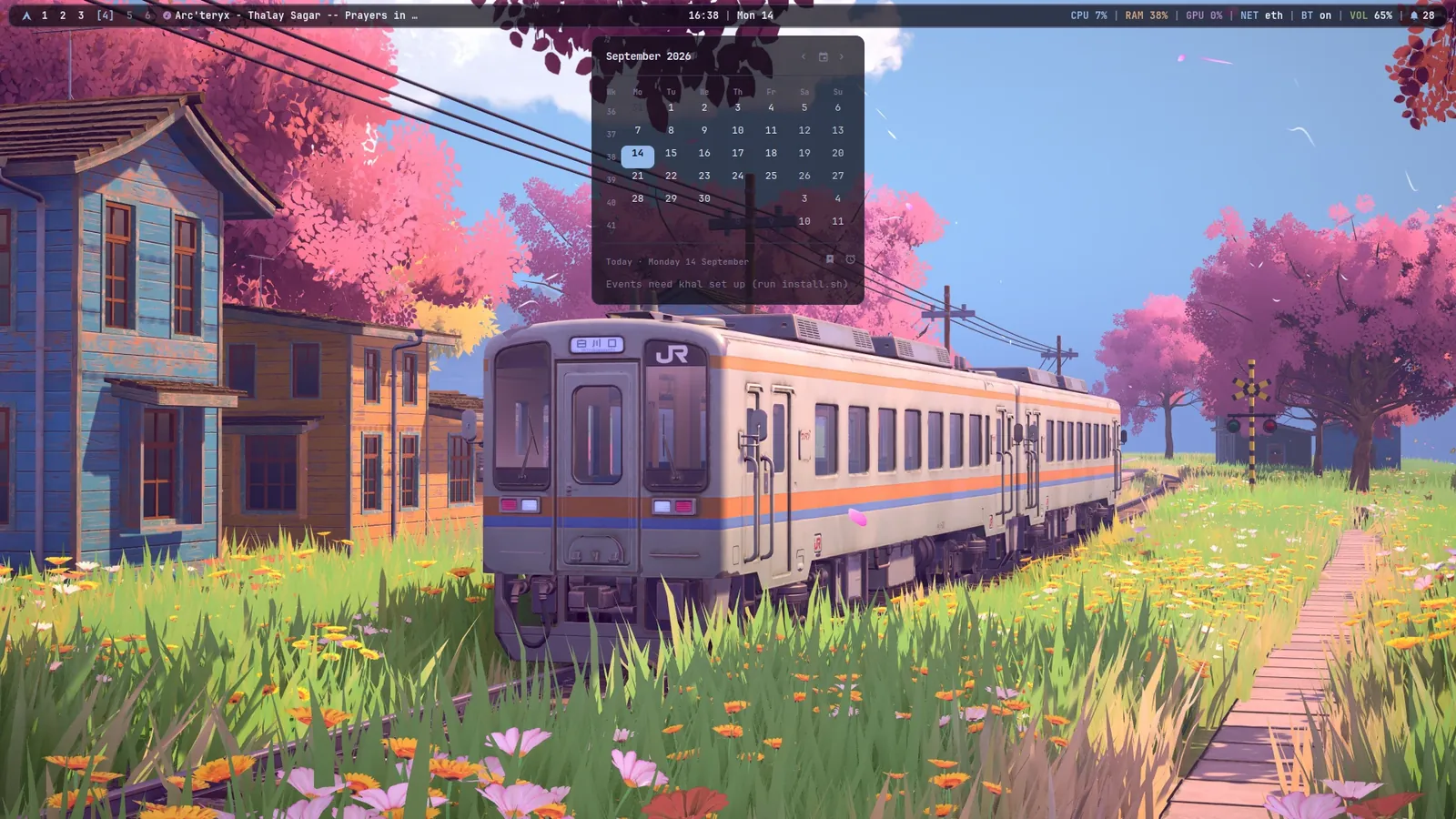
The bar is polybar, floating and rounded. Every label on it is clickable and each one opens the matching panel. Clicks are just polybar’s action tags around the text and the colours come from the same theme:
[module/date]
type = internal/date
time = %H:%M
label = "%{A1:rice-panel calendar:}%{A3:rice-reminder new:}%{F{{ accent }}}%{F-} %time%%{A}%{A}"
Left-click opens the calendar. Right-click starts a new reminder.
Popups with eww#
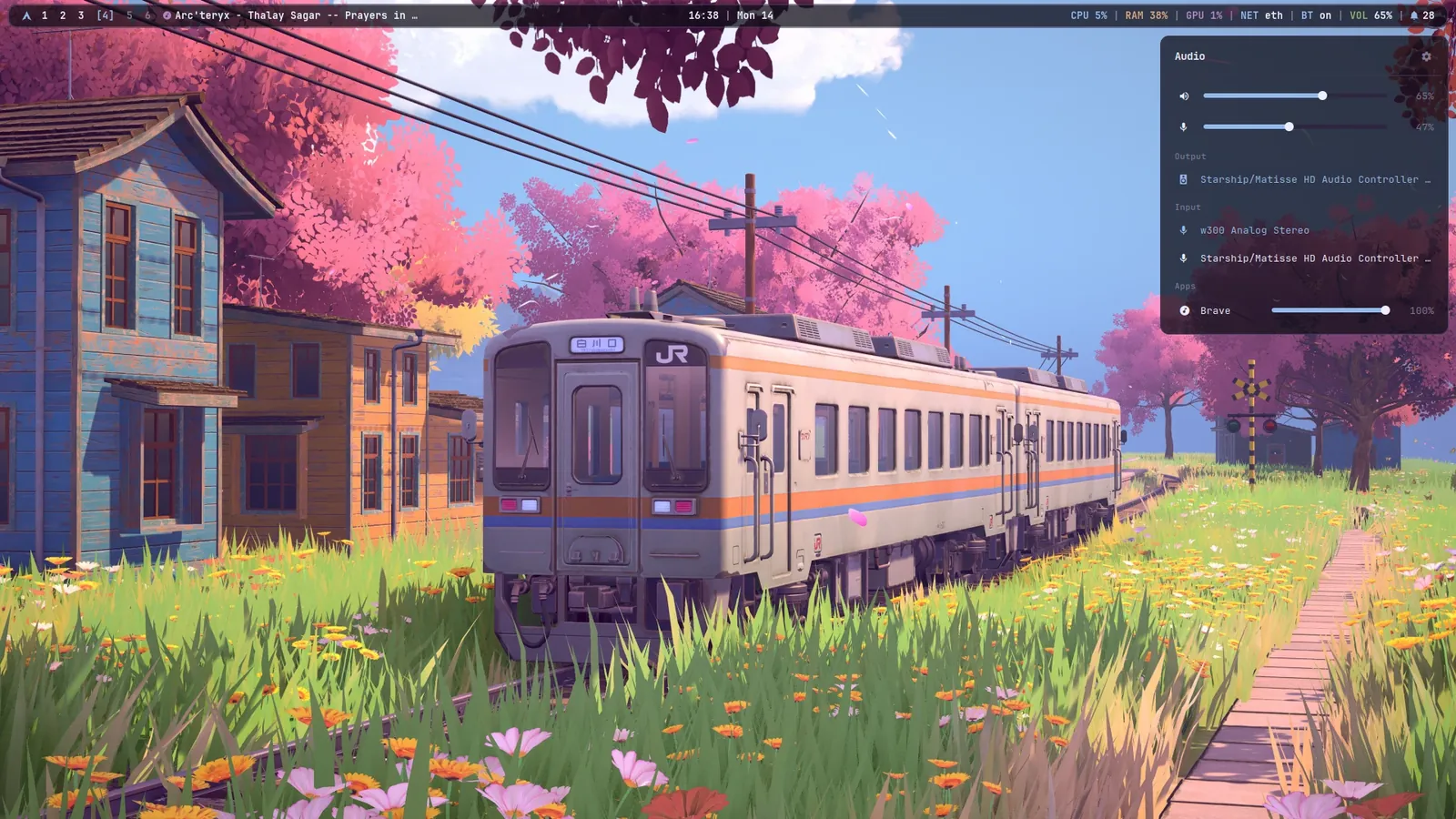
The panels are built with eww, a widget system where the layout is written in a Lisp-like language called yuck and the data comes from scripts. Here’s the top of the audio panel: two sliders for output and mic, then a list of output devices.
;; trimmed: the full panel also has a per-app mixer and input devices
(defwindow audio
:geometry (geometry :x "-10px" :y "47px" :width "380px" :anchor "top right")
:stacking "fg"
(box :class "panel" :orientation "v" :space-evenly false
(head :title "Audio")
(slider-row :glyph {audio?.sink?.muted == true ? "" : ""}
:value {audio?.sink?.vol ?: 0}
:onchange "rice-volume set {}")
(slider-row :glyph {audio?.source?.muted == true ? "" : ""}
:value {audio?.source?.vol ?: 0}
:onchange "rice-audio mic {}")
(section :text "Output")
(box :orientation "v" :space-evenly false
(for s in {audio?.sinks ?: []}
(row :glyph "" :title {s.desc} :active {s.default}
:onclick "rice-audio sink ${s.index}")))))
head, row, slider-row and section are small widgets I defined once and reuse in every panel. That’s a big part of why nine different panels still look like one design.
Getting data in without polling everything#
Widgets need live data and the lazy way is to run a script every second forever. The rice avoids that in two ways.
Things that change on their own are event-driven. Audio, media and notifications use eww’s deflisten, which reads a script’s output line by line as it arrives. The scripts behind them subscribe to real events: pactl subscribe for audio changes, playerctl --follow for the current track. Nothing runs until something actually changes.
(deflisten audio  :initial "{}" "rice-audio watch")
(deflisten media  :initial "{}" "rice-media watch")
Things that need polling only poll while you’re looking. Network, bluetooth, display and power use defpoll, but with :run-while, so they only run while their panel is open:
(defpoll net :interval "4s" :initial "{}" :run-while {open_panel == "network" || open_panel == "hub"} "rice-net list")
With every panel closed, none of the polling scripts run at all.
One panel at a time#
rice-panel <name> opens panels and enforces a few rules that make them feel native instead of bolted on:
- Only one panel is open at a time. Opening one closes the others.
- Clicking anywhere else closes it. Under the panel sits an invisible full-screen window called
closerand a click on it closes everything. - Escape closes it. While a panel is open, a throwaway sxhkd instance grabs Escape and it’s killed again when the panel closes.
- Panels line up with the windows. Instead of hard-coding positions, it asks bspwm for the live bar padding and window gap, so a panel’s edge lines up exactly with the edge of the tiled windows below it:
read -r pt pr gap < <(bspc query -T -m | jq -r '[.padding.top, .padding.right, .windowGap] | @tsv')
Menus#
Everything that’s a list is a rofi menu, styled from the same template as the rest. super + m opens the rice menu, a single place to reach apps, panels, capture tools, toggles, style settings and setup. The wallpaper picker shows a grid of thumbnails, generated and cached the first time you open it.
Motion#
picom handles transparency, rounded corners and animation. The rule I followed is one motion language: windows scale up slightly as they open and fade as they close and popups and menus do a quicker, flatter version of the same thing.
animations = (
  { triggers = [ "open", "show" ];  preset = "appear";    scale = 0.94; duration = 0.16; },
  { triggers = [ "close", "hide" ]; preset = "disappear"; scale = 0.96; duration = 0.12; }
);

rules = (
  # Menus and popups share a quicker, flatter version of the window motion.
  { match = "class_g = 'Rofi' || class_g ~= '^eww'";
    animations = (
      { triggers = [ "open", "show" ];  preset = "appear";    scale = 0.98; duration = 0.10; },
      { triggers = [ "close", "hide" ]; preset = "disappear"; scale = 0.98; duration = 0.08; }
    );
  },

  # The drop-down terminal slides from the top edge.
  { match = "class_g = 'rice-scratchpad'";
    animations = (
      { triggers = [ "open", "show" ];  preset = "slide-in";  direction = "down"; duration = 0.18; },
      { triggers = [ "close", "hide" ]; preset = "slide-out"; direction = "up";   duration = 0.14; }
    );
  },
);
The exceptions matter as much as the rules. The bar never animates. Fullscreen video and games get square corners so they can bypass the compositor. And the screenshot and colour-picker overlays never move or fade, because nothing is worse than a selection box that drifts while you aim.
Terminals#
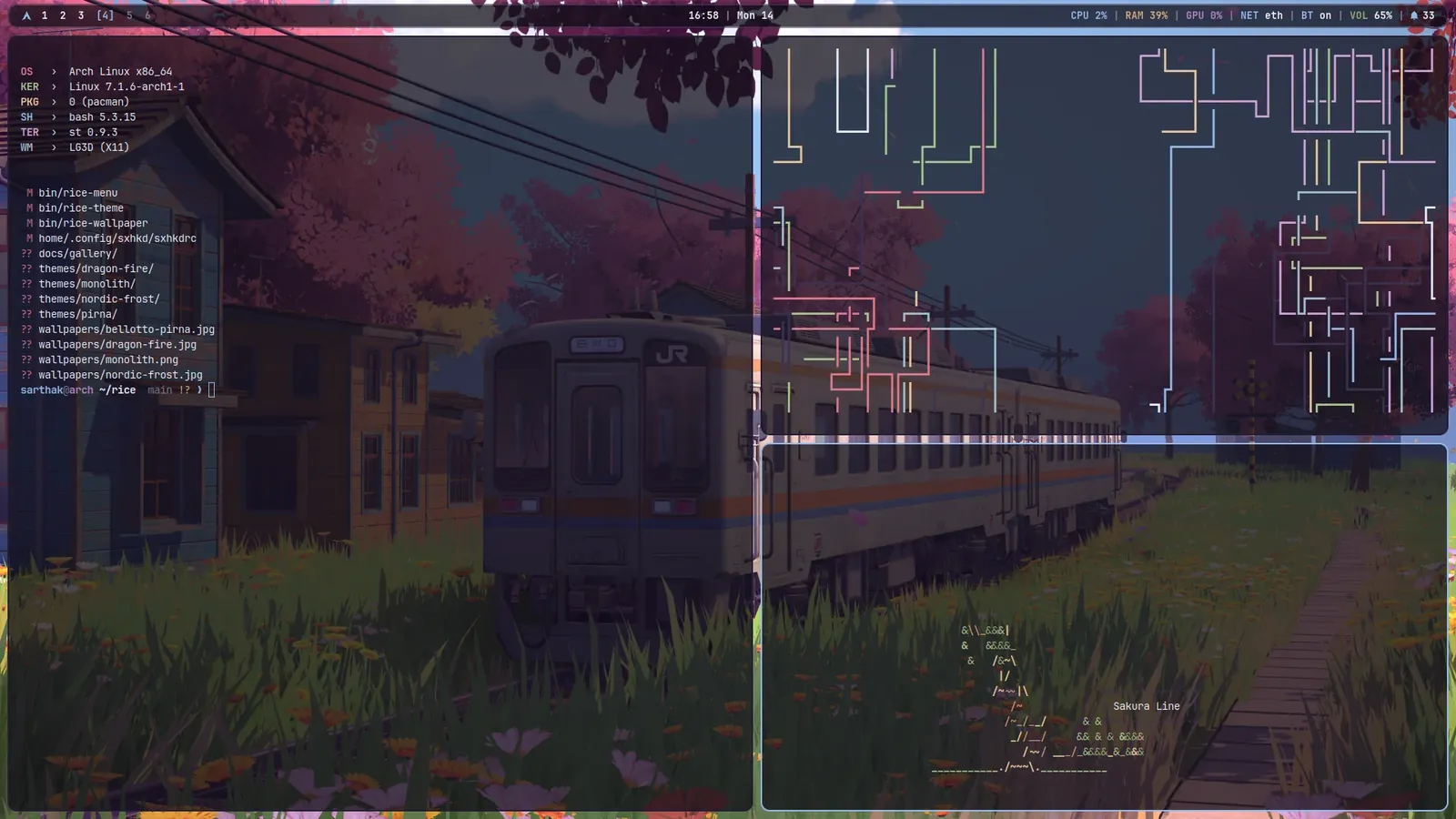
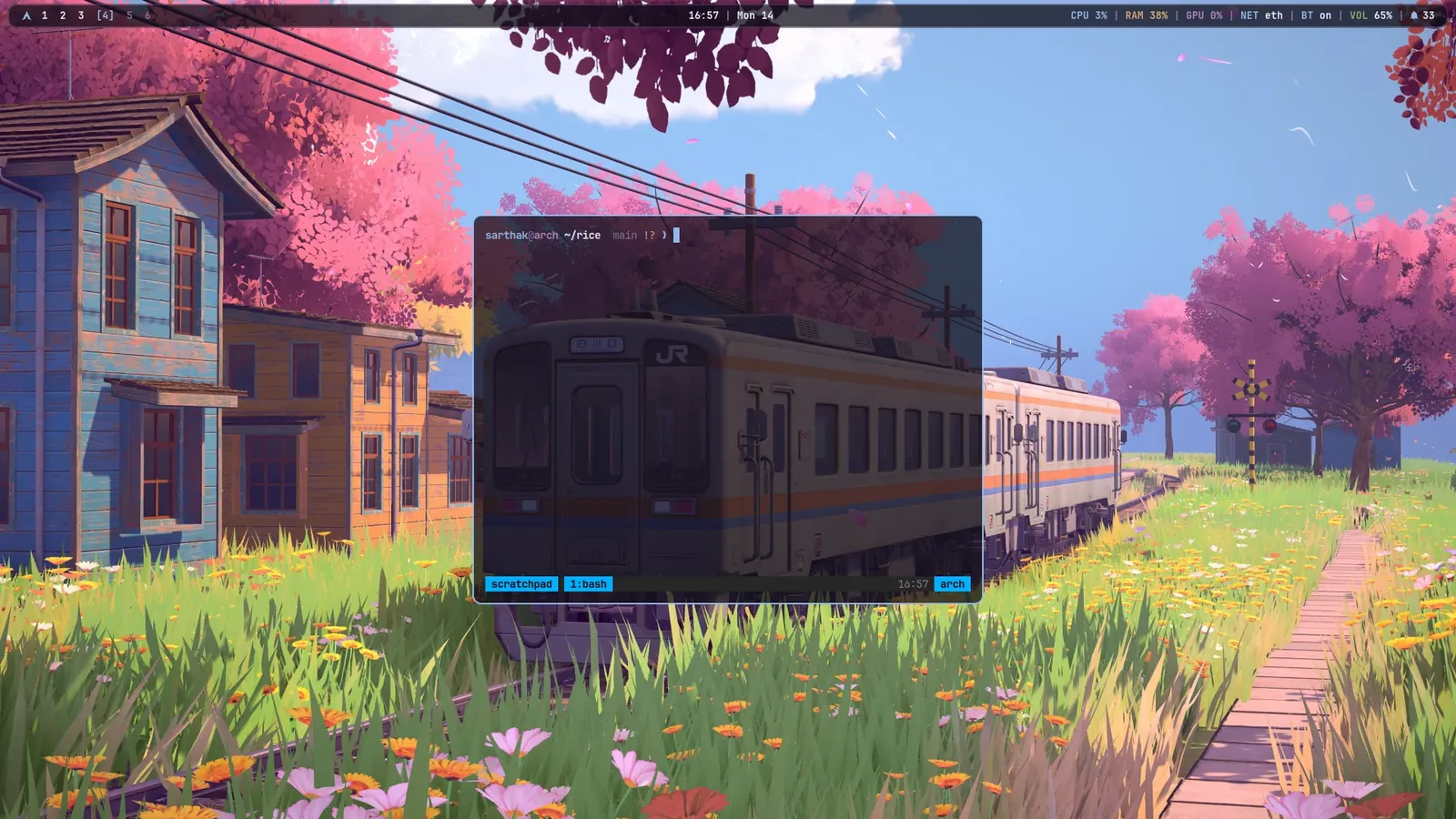
The main terminal is st, built from st-flexipatch with sixel support, so images can be drawn right in the terminal, plus ligatures and scrollback. The installer builds it for you. The prompt is starship, one line: user@host dir branch ❯.
super + ` toggles a drop-down terminal that slides in from the top and keeps its session between uses.
A living wallpaper#
The rice also includes a small C program, particles, that draws an antialiased particle field over the wallpaper. The particles drift and react to the cursor. It’s built to be invisible to everything else:
- It’s a 32-bit ARGB window at the very bottom of the stack, marked as a desktop window, so the compositor blends it over the wallpaper and every real window draws on top of it.
- Its XFixes input region is empty, so clicks, scrolls and keys pass straight through to whatever is underneath. It never grabs the pointer or keyboard.
- It reads the cursor position from the root window, so the particles keep reacting even while the pointer is over other apps.
- Frames are drawn with cairo into shared memory (MIT-SHM) and only the damaged strips of the screen are cleared and uploaded, which keeps it cheap.
Notifications#
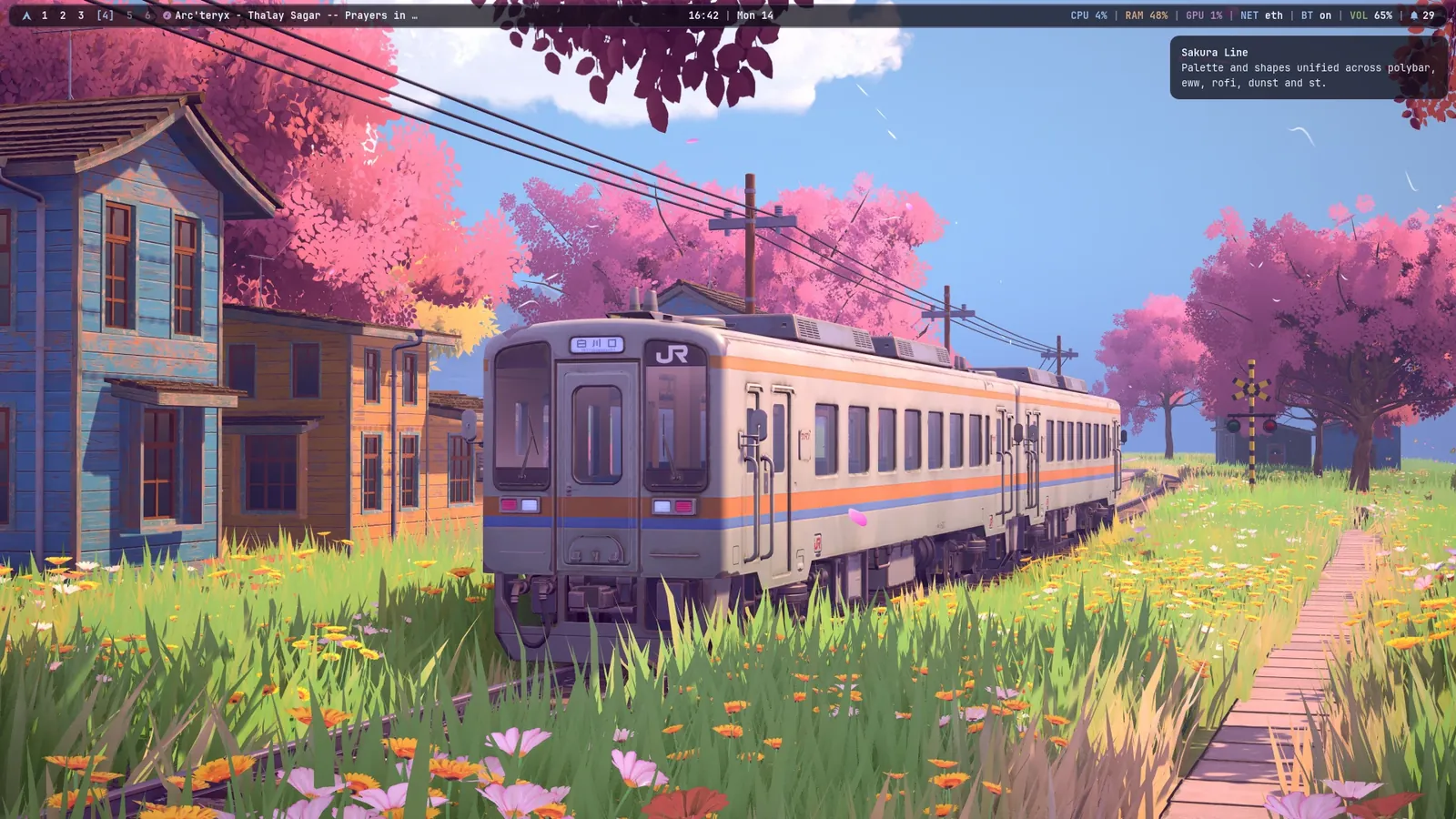
Notifications are dunst, rendered from the same palette and shape as everything else. super + n opens the notification centre. Individual notifications can be dismissed one at a time, the newest notification’s action can be run from the keyboard and do-not-disturb is one toggle away.
Install it#
On a clean Arch install, as your normal user:
git clone https://github.com/sarthak1337-alt/dotfiles.git ~/rice
~/rice/install.sh              # full install, safe to re-run
~/rice/install.sh --dry-run    # print every step, change nothing
~/rice/install.sh --update     # pull, re-link, re-render, rebuild what changed
The installer installs the packages (bootstrapping paru for the AUR), symlinks everything in home/ into your home directory and every script in bin/ into ~/.local/bin, renders the theme and builds st and the particle wallpaper. Anything it would replace is moved to ~/.rice-backup-<date>/ first. Log in on tty1 and the desktop starts. super + k shows every shortcut.
Your own settings live outside the repo, so updates never overwrite them:
| File | What it’s for |
|---|---|
~/.bashrc.local |
Personal aliases, exports and paths |
~/.config/rice/local.sh |
Autostarted apps, per-app desktops, monitor tweaks |
~/.config/rice/theme.override.toml |
Keys that win over every theme, like your font |
~/.config/rice/templates/*.tpl |
Your own templates, which win over the built-in ones |
~/.config/rice/hooks/<event>.d/ |
Scripts run on events like theme-set, lock and unlock |
If you’re building your own#
The order I’d go in, from nothing:
- bspwm and sxhkd, with a terminal and a launcher bound. You have a working desktop at this point.
- picom, for transparency, rounded corners and animation.
- A bar. polybar is the easiest place to start.
- Pull your colours into one file before you write a second config. This is the step most rices skip and it’s what turns a pile of tools into one system. Even a single sed script over a few templates is enough.
- Menus with rofi, themed from the same file.
- Popups with eww, once you know what you actually want at a click. Write your small building blocks (a row, a slider, a header) first and make every panel out of them.
Keep everything in a git repo from the first day and link it into place rather than copying. Then your whole desktop is something you can rebuild on a new machine in a few minutes, which is when a rice stops being a screenshot and becomes a tool.